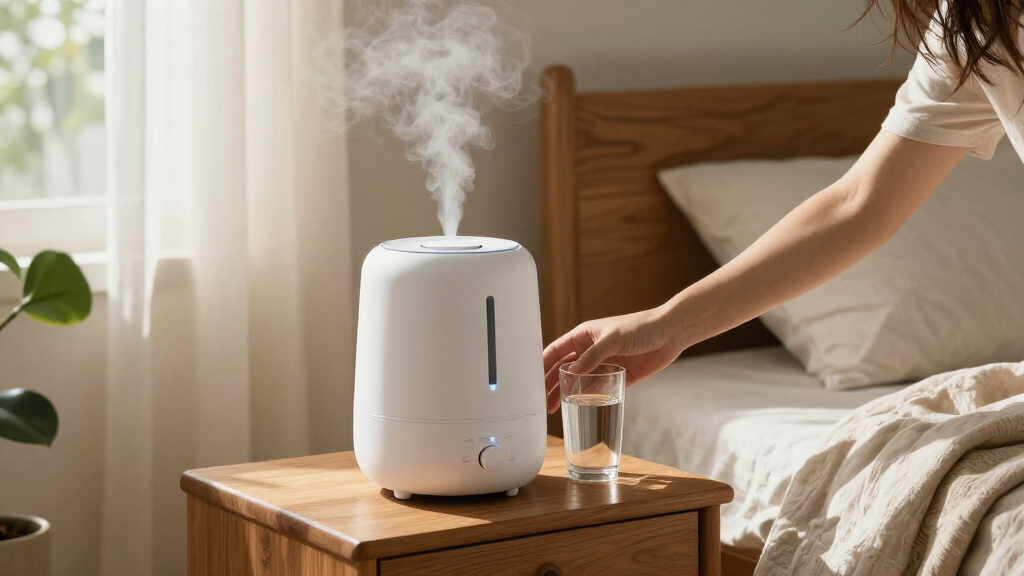

Set up and use a smart humidifier to control indoor humidity from its app or built-in controls. This guide is for beginners with a compatible phone and access to the home Wi-Fi network. Plan for about 30–45 minutes to position the unit, connect it, and set a target; routine water changes and cleaning take additional time.

Get home appliances delivered free with Prime
- Fast, free delivery on millions of items
- Prime Video, Amazon Music and more included
- Member-only deals all year

Levoit Dual 200S Smart Top-Fill Cool Mist Humidifier, 3 L
- ✔ Capacity: 3 liters
- ✔ Operation: Ultrasonic cool mist
- ✔ Runtime: Up to 25 hours

DREO 6L Smart Cool Mist Humidifier
- ✔ Capacity: 6 liters
- ✔ Operation: Ultrasonic cool mist
- ✔ Runtime: Up to 60 hours in sleep mode

GoveeLife Smart 3L Top-Fill Cool Mist Humidifier
- ✔ Capacity: 3 liters
- ✔ Operation: Ultrasonic cool mist
- ✔ Runtime: Up to 25 hours
Difficulty: Beginner | Time: 30–45 minutes, plus daily and weekly upkeep
What You’ll Need
Tools & Materials:
- Smart humidifier and its power adapter
- Compatible smartphone or tablet
- Manufacturer’s app and account, if required
- Home Wi-Fi name and password
- Clean water, following the model’s instructions
- Soft cloth and the cleaning supplies listed in the manual
Knowledge:
- Basic phone app and Wi-Fi use
- Ability to identify a level, water-resistant surface near a power outlet
Read the device manual before adding water. Models differ in water type, cleaning products, tank handling, and whether they use a 2.4 GHz Wi-Fi network. Do not mix cleaning chemicals or add fragrance, oils, or medication unless the manufacturer explicitly permits it.
Levoit Dual 200S Smart Top-Fill Cool Mist Humidifier, 3 L
The Levoit Dual 200S is our leading choice because its smart controls include the piece that makes automation useful: a built-in humidistat. It can monitor humidity and run auto mode toward a selected level, while app and voice controls, scheduling, and a timer make it easier to fit humidification into a daily routine. Compared with the GoveeLife, it does not require a separately sold thermo-hygrometer for this basic automatic adjustment.Its 3-liter top-fill tank and stated runtime of up to 25 hours place it in the same compact, refillable class as GoveeLife, rather than the larger-room category occupied by DREO. The Levoit is rated for 107–290 square feet, so buyers should match that range to the room rather than expect DREO’s stated coverage of up to 500 square feet. The quiet operation, with a stated maximum of 28 dB, and a display light that can be turned off are useful bedroom details.There are upkeep tradeoffs. The filter sponge may need replacing about monthly depending on water hardness, and distilled or purified water is recommended to help limit white dust or humming. The built-in sensing is the differentiator, but it does not remove the need for cleaning or suitable water. For shoppers who want a relatively complete smart setup in a smaller room, this is the most balanced pick of the three.
Pros:
- Built-in humidistat supports auto mode without an additional sensor.
- App, voice, onboard controls, scheduling, and timer.
- Top-fill 3-liter tank with stated runtime up to 25 hours.
- Quiet operation and a display light that can be turned off.
Cons:
- Filter sponge may need monthly replacement depending on water hardness.
- Distilled or purified water is recommended to help reduce white dust or humming.
- Stated coverage tops out at 290 square feet.
Best for: Buyers who want a 3-liter smart humidifier with built-in humidity sensing, app scheduling, and automatic adjustment for a bedroom or other appropriately sized room.
Not ideal for: People humidifying a large open room, or buyers who want to avoid replacing a filter sponge and managing water quality.
Bottom line: We recommend the Levoit Dual 200S for buyers who value included humidity sensing more than the DREO’s larger tank or GoveeLife’s lighting options.
“We recommend the Levoit Dual 200S for buyers who value included humidity sensing more than the DREO’s larger tank or GoveeLife’s lighting options.”
DREO 6L Smart Cool Mist Humidifier
When refilling a smaller tank every day sounds inconvenient, the DREO 6L makes the strongest case in this group. Its tank is twice the stated capacity of the Levoit and GoveeLife, and its sleep-mode runtime is listed at up to 60 hours. That makes it better suited to longer overnight stretches or rooms up to its stated 500-square-foot limit. The tradeoff is that the supplied runtime is specifically for sleep mode, so buyers should not assume the same duration at every output setting.DREO still offers the smart basics: app, voice, and touch controls, adjustable humidity settings, and auto, manual, and sleep modes. Its stated 28 dB noise level is close to Levoit’s maximum and higher than GoveeLife’s stated low of 24 dB. Compared with Levoit, DREO prioritizes tank capacity and room reach over a specifically described built-in humidistat. The product details list adjustable humidity and auto mode, but do not establish that its sensing setup works the same way as Levoit’s.The top-fill design, aroma diffuser, and night light add convenience, though they do not change the main decision: this model is the capacity pick. At 26 watts and with a corded power source, it still needs a nearby outlet and regular cleaning. Buyers with smaller rooms may find the Levoit’s built-in humidistat a more useful smart feature than carrying extra tank capacity they do not need.
Pros:
- Large 6-liter tank and stated sleep-mode runtime up to 60 hours.
- Coverage stated for rooms up to 500 square feet.
- App, voice, and touch controls with adjustable humidity settings.
- Top-fill design with sleep mode, aroma diffuser, and night light.
Cons:
- Corded electric operation requires a nearby outlet.
- Stated coverage is limited to rooms up to 500 square feet.
- Supplied details do not clarify its humidity sensing setup as specifically as Levoit’s.
Best for: Households with a larger room, or anyone prioritizing a larger tank and longer stated runtime between refills.
Not ideal for: Buyers with a compact room who value clearly specified built-in humidity sensing, or anyone needing a cordless humidifier.
Bottom line: We would choose the DREO 6L when room size and fewer refills matter more than the Levoit’s clearly specified built-in humidistat.
“We would choose the DREO 6L when room size and fewer refills matter more than the Levoit’s clearly specified built-in humidistat.”
GoveeLife Smart 3L Top-Fill Cool Mist Humidifier
The GoveeLife 3L is a good fit for buyers who want the humidifier to play a visible part in a connected room setup. It supports app, touch, and voice control, with schedules, timers, and cleaning reminders. Its adjustable RGB night light gives it a more customizable bedside presence than either Levoit or DREO, and sleep mode with a stated noise level as low as 24 dB may appeal to light sleepers.Its main limitation is central to this roundup: automatic humidity adjustment requires a separate GoveeLife thermo-hygrometer. Without that extra device, the app and schedules still provide smart convenience, but the humidifier cannot provide the same included humidity-sensing setup described for Levoit. That makes the GoveeLife a less complete out-of-box choice for buyers whose priority is maintaining a target humidity automatically.On capacity, it is close to Levoit: both have a 3-liter top-fill tank and a stated runtime of up to 25 hours. Neither matches DREO’s 6-liter tank or its broader stated room coverage. GoveeLife does support Alexa, Google Assistant, and IFTTT, but it works on 2.4 GHz Wi-Fi only, a compatibility detail worth checking before purchase. This model makes the most sense when lighting and connected routines matter more than built-in humidity sensing.
Pros:
- App, touch, and voice controls with schedules, timers, and cleaning reminders.
- Adjustable RGB night light and sleep mode.
- Top-fill 3-liter tank with stated runtime up to 25 hours.
- Works with Alexa, Google Assistant, and IFTTT.
Cons:
- Automatic humidity adjustment requires a separately sold thermo-hygrometer.
- Supports 2.4 GHz Wi-Fi only.
- Its 3-liter tank and stated 290-square-foot coverage are less suited to larger rooms than DREO.
Best for: Buyers who want adjustable RGB lighting, voice and app routines, and a compact top-fill humidifier, especially if they already own a compatible GoveeLife sensor.
Not ideal for: Anyone who expects automatic humidity adjustment to work without buying a separate thermo-hygrometer, or whose Wi-Fi setup does not support 2.4 GHz.
Bottom line: We recommend GoveeLife for buyers who prize lighting and app routines, provided they account for the separate sensor needed for automatic humidity adjustment.
“We recommend GoveeLife for buyers who prize lighting and app routines, provided they account for the separate sensor needed for automatic humidity adjustment.”
As an Amazon Associate we earn from qualifying purchases.
Before You Start
Choose a location with open space around the air outlet. Keep the humidifier on a level, water-resistant surface where mist will not land on walls, electronics, bedding, or books. Place it away from heaters and direct sunlight, and keep cords out of walkways. Follow the manual’s clearance distances and electrical safety instructions. If you are using a separate humidity sensor, check whether the humidifier’s built-in sensor or the remote sensor controls automatic operation.
Step-by-Step Instructions
Step 1: Choose a suitable location
Set the humidifier on a stable, level surface near an outlet, leaving the clearance recommended in the manual. Point the mist away from furniture, walls, curtains, and electronics. Keep the unit out of children’s reach if its tank, cord, or controls could be pulled or spilled.
Tip:A hard, water-resistant surface makes spills easier to spot and clean. Avoid placing the unit directly on carpet or wood that could be damaged by moisture.
Check: The unit sits level, the air outlet is unobstructed, and mist can disperse without wetting nearby objects.
Step 2: Inspect and fill the tank
Unplug the unit, remove the tank, and check the manual for the allowed water type and fill limit. Rinse the tank if the instructions call for it, fill it without exceeding the marked line, and fit it back securely. Wipe up any spills before reconnecting power.
Tip:Some ultrasonic models can disperse minerals from tap water as white dust. Use distilled or other specified water if the manual recommends it. Do not pour water into the base or electronics compartment.
Check: The tank is seated, the outside and surrounding surface are dry, and the water level is within the marked range.
Step 3: Install the app and prepare the phone
Find the manufacturer’s app using the link or QR code in the manual, then install it from your phone’s official app store. Sign in or create an account if the app requires one. Connect your phone to the Wi-Fi network you want the humidifier to use, and allow the app’s requested local network or Bluetooth access during pairing.
Tip:Check the manual for network requirements before pairing. Many smart humidifiers require 2.4 GHz Wi-Fi, and some cannot join networks that use a captive sign-in page.
Check: The app opens, your phone is connected to the intended home network, and you can access the device setup screen.
Step 4: Pair the humidifier
Plug in the humidifier and put it into pairing mode using the method in the manual, such as holding a Wi-Fi button until an indicator blinks. In the app, choose the option to add a device and select the correct model. Enter the Wi-Fi password carefully and keep the phone close to the unit until setup finishes.
Tip:If the app asks to connect your phone temporarily to the humidifier’s own Wi-Fi network, follow its prompts and return to the app afterward. Do not reset the router as a first response to a pairing error.
Check: The app lists the humidifier as online, and its status or controls update when you tap them.
Step 5: Set a reasonable humidity target
Open the device controls and select auto or humidity mode if available. Set a starting target in the range recommended by the manufacturer; a common indoor target is around 40–50% relative humidity. Use a lower target if windows show condensation or surfaces feel damp. Avoid settings that keep the room persistently humid.
Tip:Use a separate hygrometer to compare the room reading with the humidifier’s sensor. Humidity near the unit can differ from humidity elsewhere in the room.
Check: The app shows the chosen target and current humidity, and the device responds to the selected mode.
Step 6: Configure schedules and alerts
Set a schedule only if you want the unit to run at particular times. Choose hours when added humidity is useful, then enable low-water or maintenance alerts if the app offers them. Leave automatic controls active if you want the humidifier to stop or adjust output after reaching its target.
Tip:Start with a short schedule and observe the room before extending run time. A humidifier can add too much moisture in a small or poorly ventilated room.
Check: The schedule and alerts appear in the app, and the humidifier follows the mode you selected.
Step 7: Check the first operating cycle
Run the humidifier while you are nearby and check that mist or moisture output is normal for the model. Confirm that there are no leaks, unusual sounds, or wet patches. After the unit has run for a while, check the room and nearby surfaces for condensation; lower the target or move the unit if surfaces become damp.
Tip:Some models produce an invisible vapor, so use the app, indicator lights, or a hygrometer to confirm operation rather than relying only on visible mist.
Check: The unit runs without leaking, its status is visible in the app, and the room remains free of condensation.
Step 8: Set a cleaning routine
Follow the manual’s schedule to empty, rinse, dry, and clean the tank and base. Unplug the unit before cleaning, and use only approved products and methods. Empty standing water when the humidifier will sit unused, and refill with fresh water before the next use.
Tip:Do not immerse the base, electrical parts, or sensors unless the manual explicitly says they are safe to submerge. Descale only as directed; strong chemicals can damage surfaces or leave residue.
Check: The tank and accessible water-contact areas are clean and dry as instructed, with no visible buildup or lingering cleaning-product odor.
Common Mistakes to Avoid
- Placing the humidifier where mist wets a wall, furniture, or electronics. — Keep the outlet clear and aim it into open space. Check nearby surfaces during the first operating cycle and move the unit if they become damp.
- Filling beyond the tank’s limit or using water the model does not support. — Check the fill line and the manual’s water guidance before every refill. Wipe up spills before plugging the device in.
- Setting an excessively high target or running the unit continuously without checking room conditions. — Start with a moderate target and use auto mode when available. Reduce the target or runtime if condensation appears.
- Skipping cleaning or adding oils and scented products to the water. — Follow the cleaning schedule and use additives only if the manual specifically approves them for the water tank or a separate tray.
Troubleshooting
Problem: The app cannot find or connect to the humidifier.
Solution: Confirm the unit is in pairing mode and the phone is on the required Wi-Fi band. Re-enter the password, move the phone closer, and restart pairing using the manual’s reset procedure. Check that the app has the permissions it requests.
Problem: The app shows the humidifier as offline after setup.
Solution: Check that the router is on and the humidifier remains within Wi-Fi range. Restart the app and device, then reconnect through the app if needed. If the router name or password changed, update the device’s network settings.
Problem: The humidifier runs but the room reading barely changes.
Solution: Confirm the tank has water and is seated correctly, and check for blocked vents or a filter that needs care. Make sure the room is not too large for the model and that doors or ventilation are not quickly carrying moisture away.
Problem: Windows or nearby surfaces become wet.
Solution: Lower the humidity target or shorten the schedule, then move the unit farther from surfaces. Stop operation until the moisture clears. If dampness persists, check room humidity with a separate hygrometer and improve ventilation.
What Success Looks Like
The humidifier appears online in its app, responds to commands, and runs without leaks or unusual behavior. Its target and schedule are set as intended, the room reaches a comfortable humidity without condensation, and you know how to refill, empty, and clean the model according to its manual.
Next Steps
Check the tank and room humidity during regular use, refill with fresh water, and clean the unit on the schedule in its manual. Review the target when seasons or room conditions change. If the device repeatedly loses its network connection, leaks, or behaves abnormally after cleaning and setup, stop using it and contact the manufacturer for model-specific support.
Frequently Asked Questions
What humidity should I set on a smart humidifier?
Start around 40–50% relative humidity if that range suits your home and the manufacturer’s guidance. Lower the target if you see condensation, damp surfaces, or persistent window fogging. A separate hygrometer can help check the room away from the humidifier.
Does a smart humidifier need Wi-Fi to work?
Many models still work with physical controls when Wi-Fi is unavailable, but remote control, app schedules, alerts, or voice features may stop. Check your manual for which functions remain available offline.
Can I use tap water?
That depends on the model and local water hardness. Follow the manual. Some ultrasonic humidifiers can spread mineral dust when filled with hard tap water, so the manufacturer may recommend distilled water.
How often should I clean the humidifier?
Use the cleaning and descaling frequency listed in the manual. Emptying and refreshing standing water regularly helps keep the tank from sitting with stale water; clean more often if you see buildup or the manufacturer advises it.
Can I add essential oils to the tank?
Only do so when the manual explicitly approves it for that model and identifies where to add it. Oils can damage some tanks and internal parts; use a separate aroma tray if the device provides one.